
User Guide
A step-by-step walkthrough of everything AMA can do
Getting started
How do I sign up?
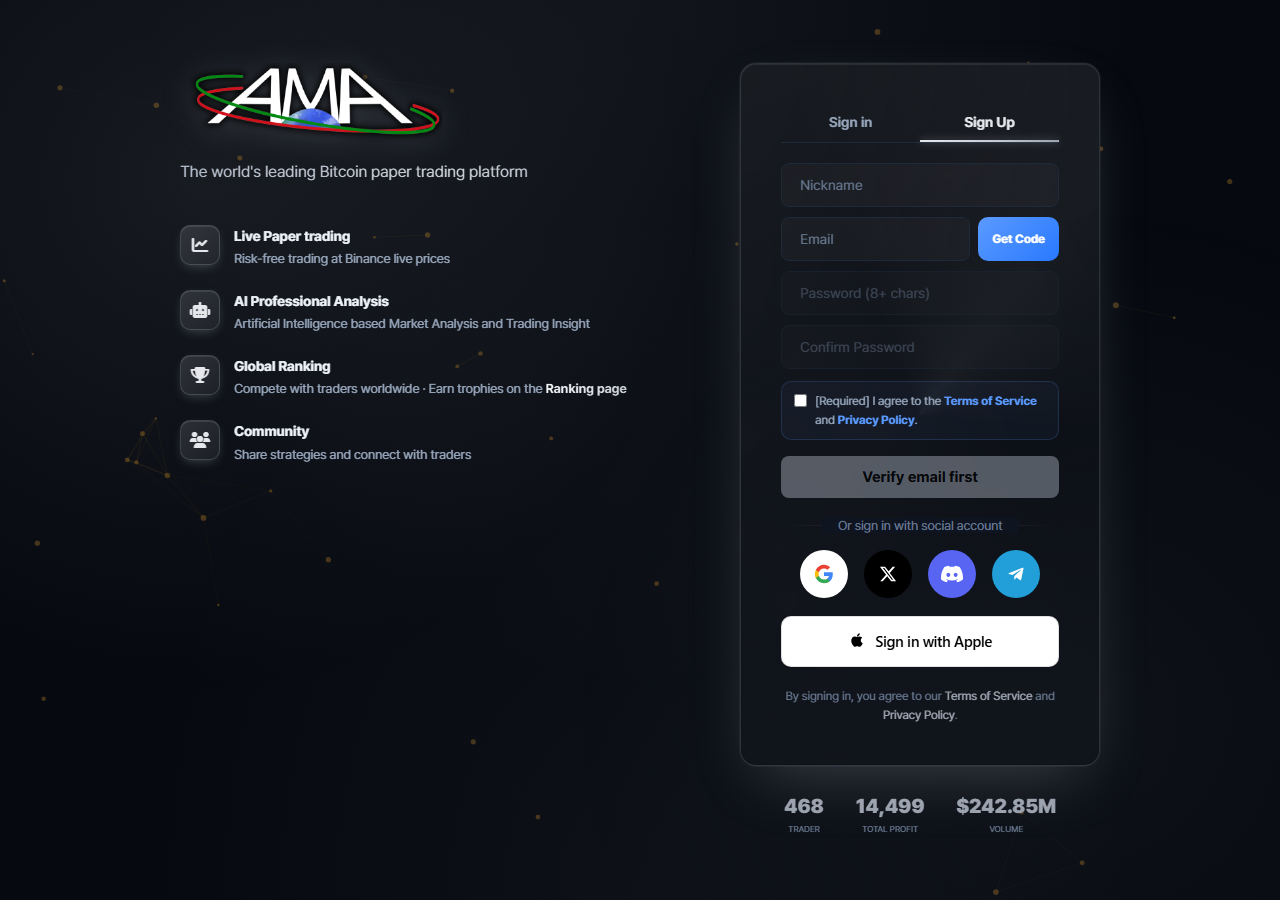
An AMA account is created through email verification. Follow the steps and it takes only a few minutes.
Social login — you can also sign up with Google, X, Discord, Telegram or Apple.
Invite code — if you arrive through a friend's invite link the code is applied automatically. If you only received the code itself, you can type it into the “Invite code (optional)” field in the terms dialog.
1
Click [Login / Sign up] at the top right of the screen.
2
Switch to the [Sign up] tab.
3
Enter a nickname. This is the name shown in the community and on the ranking board.
4
Enter your email address and press [Send verification code].
5
Type the 6-digit code from the email and press [Confirm].
6
Set a password.
7
Accept the terms of service to finish.
Invite code — if you arrive through a friend's invite link the code is applied automatically. If you only received the code itself, you can type it into the “Invite code (optional)” field in the terms dialog.
Please sign up from the desktop site. If you are not logged in on mobile, tapping login, sign up or write opens the app notice sheet first.
What do I get when I sign up?
Once you finish signing up you receive paper-trading seed money and points.
| Item | Amount | Condition |
|---|---|---|
| Paper-trading seed money | 10,000 USDT | Once per account |
| Sign-up bonus points | 1,000P | On accepting the terms of service |
| Invite code bonus | +1,000P | When an invite code was applied (2,000P in total) |
| The person who invited you | 500P | Paid separately to your inviter |
Points are granted when you accept the terms of service, not at the moment the account is created. If your balance still shows 0 right after signing up, check whether the terms step is outstanding.
The seed money is virtual. You can start practising immediately with no payment and no card registration.
Can I get more seed money if I lose it all?
Yes. The order panel on the trading screen has a refill function.
- The [Refill] button becomes active once your total assets fall below $6,000.
- Pressing it resets your balance to $10,000.
- The ROI baseline is reset at the same time, so your return rate starts again from 0%.
- You can refill up to 30 times per month.
- Your past trade history is not deleted.
A refill is refused while you hold any open position. Close all of your positions first, then try again.
Refilling exists so you can keep practising. Bear in mind that resetting the baseline also resets the return rate you have built up, so use it thoughtfully if you are aiming for the ranking board.
What menus are there? (screen tour)
Desktop top menu
- Home, Paper trading, AIM, Community, Live market, News, Trading journal
- Under More: Rewards, User guide, Notices
- Paper trading / AIM / Home / Journal / MY
- Trading — Paper trading, AIM, Live market, Trading journal
- Ranking & competition — Global ranking
- Social — Community, News
- Benefits & support — Rewards, User guide, Notices
- Paper trading, Trading journal, Trade history, Community, Customise, Creator
Paper trading
How is the trading screen laid out?
- Left — the live candlestick chart
- Centre — the order book
- Right — the order panel, showing available balance, used margin, unrealised PNL, total assets and the refill button
- Four tabs along the bottom — Positions / Open orders / Trade history / Ranking
Tradable coins — the top 100 Binance USDT perpetual futures by 24-hour volume are listed in real time. In the coin selector you can search, and sort by volume, price change, price or name.
What are long and short?
- Long (buy) — you bet the price will rise. You profit when the price goes above your entry.
- Short (sell) — you bet the price will fall. You profit when the price goes below your entry.
This is one-way mode. If you already hold a position and enter in the opposite direction, the existing position is fully closed automatically before the new one opens. You cannot hold a long and a short on the same symbol at the same time.
Reduce-Only — tick this box in the order panel and, instead of opening a new position, the order partially closes your existing opposite position by the chosen percentage of seed. Use it to unwind a position gradually.
How do I set leverage?
Leverage can be set anywhere from 1x to 100x, and the default is 10x. The slider ticks are 1 / 25 / 50 / 75 / 100.
Margin = position size ÷ leverage. Raising the leverage lowers the margin needed for a position of the same size, but it also moves your liquidation price closer to your entry price.
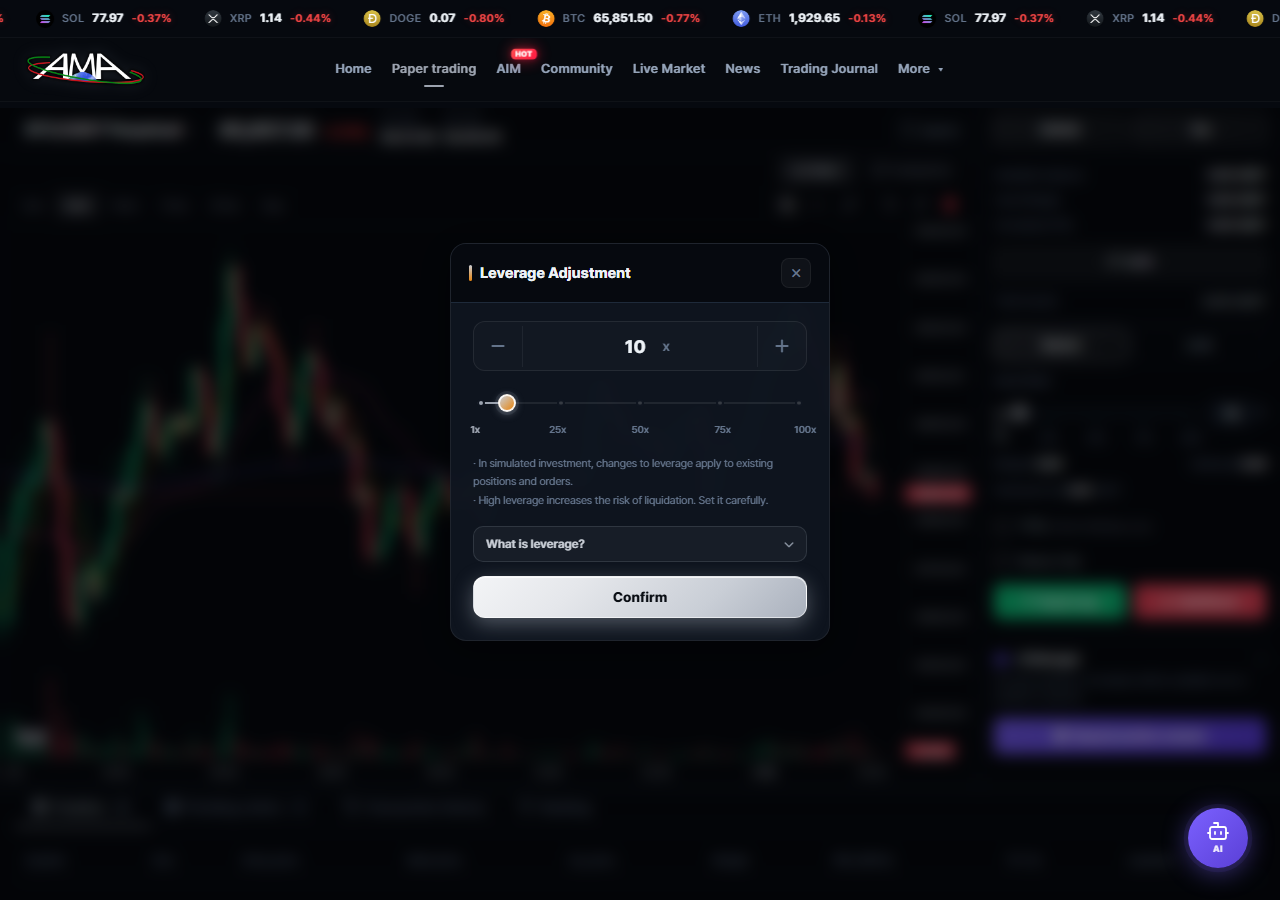
Margin = position size ÷ leverage. Raising the leverage lowers the margin needed for a position of the same size, but it also moves your liquidation price closer to your entry price.
Leverage multiplies losses by the same factor as gains. Starting at 5–10x is recommended.
The AIM analysis screen also has a leverage field, but its range is 0–150. That value is only an input for the analysis and is never used for a real order. The ceiling for actual trading is 100x.
Order types — market and limit
There are two order types: market and limit.
- Market — fills immediately at the current price.
- Limit — you name the price you want. The order is registered as an open order and the margin is reserved and deducted up front. It fills automatically once the price condition is met.
How do I use TP / SL (take profit and stop loss)?
- TP (take profit) — locks in your gain and closes the position automatically when the price you set is reached.
- SL (stop loss) — caps your loss and closes the position automatically when the price you set is reached.
When an automatic close fires, the reason for closing is recorded in your trade history as one of: manual, TP, SL, or liquidation.
A stop loss is the single most reliable defence against liquidation. Getting into the habit of setting one at the moment you enter a trade sharply reduces the chance of losing your whole margin to one mistake.
How much are the fees?
The fee is a flat 0.05%. There is no maker/taker distinction. It is charged both when you open and when you close, so a full round trip costs 0.1%.
Worked example — entering long on 0.2 BTC at $50,000 with 10x leverage
Worked example — entering long on 0.2 BTC at $50,000 with 10x leverage
| Item | Calculation | Amount |
|---|---|---|
| Position size | $50,000 × 0.2 | $10,000 |
| Margin (10x) | $10,000 ÷ 10 | $1,000 |
| Opening fee | $10,000 × 0.0005 | $5.00 |
| Closing fee (closed at $51,000) | $10,200 × 0.0005 | $5.10 |
| Total fees | $5.00 + $5.10 | $10.10 |
| Realised profit | ($51,000 − $50,000) × 0.2 − $10.10 | +$189.90 |
Raising leverage does not change the rate, but it does let you open a larger position on the same margin, so the cash amount of fees you pay grows. The more often you trade, the more those fees add up.
When does liquidation happen?
When the unrealised loss exceeds the margin you committed, the system closes the position automatically. At that point you lose the entire margin on that position.
Liquidation price formulas (fees are included in the calculation)
Liquidation price formulas (fees are included in the calculation)
- Long — (entry × (1 + fee) − margin ÷ quantity) ÷ (1 − fee)
- Short — (entry × (1 − fee) + margin ÷ quantity) ÷ (1 + fee)
| Leverage | 5x | 10x | 25x | 50x | 100x |
|---|---|---|---|---|---|
| Tolerated move | ~20% | ~10% | ~4% | ~2% | ~1% |
Liquidation is monitored on the server against live Binance prices. It still executes even if you close your browser or log out.
How to avoid it — always set a stop loss, use lower leverage, and leave spare margin.
AIM AI analysis
What is AIM?
AIM is a feature where an AI reads a chart and produces a technical analysis report.
- You can upload a chart image yourself, or capture the built-in TradingView chart on the site and send that for analysis.
- In TradingView mode the server also reads the actual Binance candle data and folds it into the analysis.
AIM output is for education and reference only and is not investment advice. The final judgement and the responsibility are yours.
How do I request an analysis?
Two ways to provide the chart
Choosing indicators — you can only select the indicators your AI level allows. Indicators you have not unlocked appear with a padlock.
- Image upload — drag or click to upload a chart image. PNG, JPEG, WebP and GIF up to 10MB are supported.
- TradingView mode — search and pick from 500+ actively traded coins on Binance USDT futures, then choose a timeframe (1m / 5m / 15m / 1H / 4H / 1D). You can also use area capture to analyse just part of the chart.
Choosing indicators — you can only select the indicators your AI level allows. Indicators you have not unlocked appear with a padlock.
| Item | Detail |
|---|---|
| Free allowance | 5 per day |
| Once the allowance runs out | Any [AIM chart analysis extra] passes you hold are used first |
| If you have no passes | 100P is deducted and the analysis continues |
The four AI learning levels
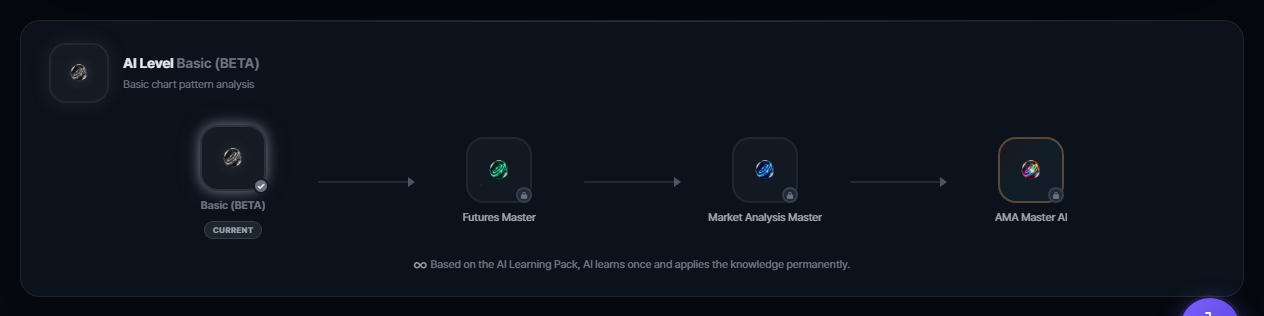
| Stage | Name | How to unlock | Prerequisite |
|---|---|---|---|
| 0 | Basic (BETA) | Included on sign-up | — |
| 1 | Futures Master | One-off payment of USDT $99 | None |
| 2 | Market Analysis Master | One-off payment of USDT $298 | Futures Master |
| 3 | AMA Master AI | One-off payment of USDT $498 | Market Analysis Master |
- This is not a subscription. One payment keeps the level permanently; there is no expiry.
- Levels cannot be bought with points. AI levels are not a point-exchange item.
- Higher levels are cumulative and include every indicator from the levels below.
How do I read the analysis result?
The report is made up of the following parts.
- Trend assessment — whether the current move is closer to up, down or sideways
- Support and resistance — the zones where price is most likely to react
- Suggested entry zone — a price band worth considering for entry
- Reference stop-loss price — a level to anchor your loss limit on
- Risk assessment — how risky the current setup is
The AI only offers probabilities based on past patterns; it cannot guarantee the future. Always pair it with your own judgement and a stop-loss plan.
Trading journal
What is the trading journal?
The journal is where you record your trades and review them with AI feedback.
How to get there — use [Trading journal] in the top menu, or the MY > Trading journal tab.
Statistics provided
How to get there — use [Trading journal] in the top menu, or the MY > Trading journal tab.
Statistics provided
- Cumulative profit
- Win rate
- Number of trades
- Average PNL
- Profit and loss distribution
You learn more from recording the trades that went wrong than the ones that went right. Noting why you entered and why you closed makes it easy to spot whether you keep repeating the same mistake.
The three AI feedback types and their limits
| Type | Free allowance | Beyond the allowance |
|---|---|---|
| Per-trade AI feedback | 30 per month (resets on the 1st) | Pass, else 50P |
| Daily summary feedback | 1 per day | Pass, else 100P |
| Monthly summary analysis | 1 per month, available from the 26th | Pass, else 500P |
- Reopening a journal entry that already has feedback shows the saved copy and does not consume your allowance.
- Spending points always goes through a two-step confirmation. Nothing is deducted without you knowing.
- If you hold an AIM chart analysis pass, the pass is used before any points.
Where do I check my trade history?
Open the MY > Trade history tab. Each trade records the following.
- Symbol and direction (long/short)
- Entry price and closing price
- Quantity and leverage
- Fees
- Realised profit or loss
- Reason for closing (manual, TP, SL, liquidation)
Community
How is the board organised?
Four list tabs — All / Free Talk / Analysis / Q&A (there are three real categories; [All] is a combined view)
A Popular posts TOP 10 block sits at the top of the list. Notices and news posts are excluded, and only posts with a title of at least three characters are counted.
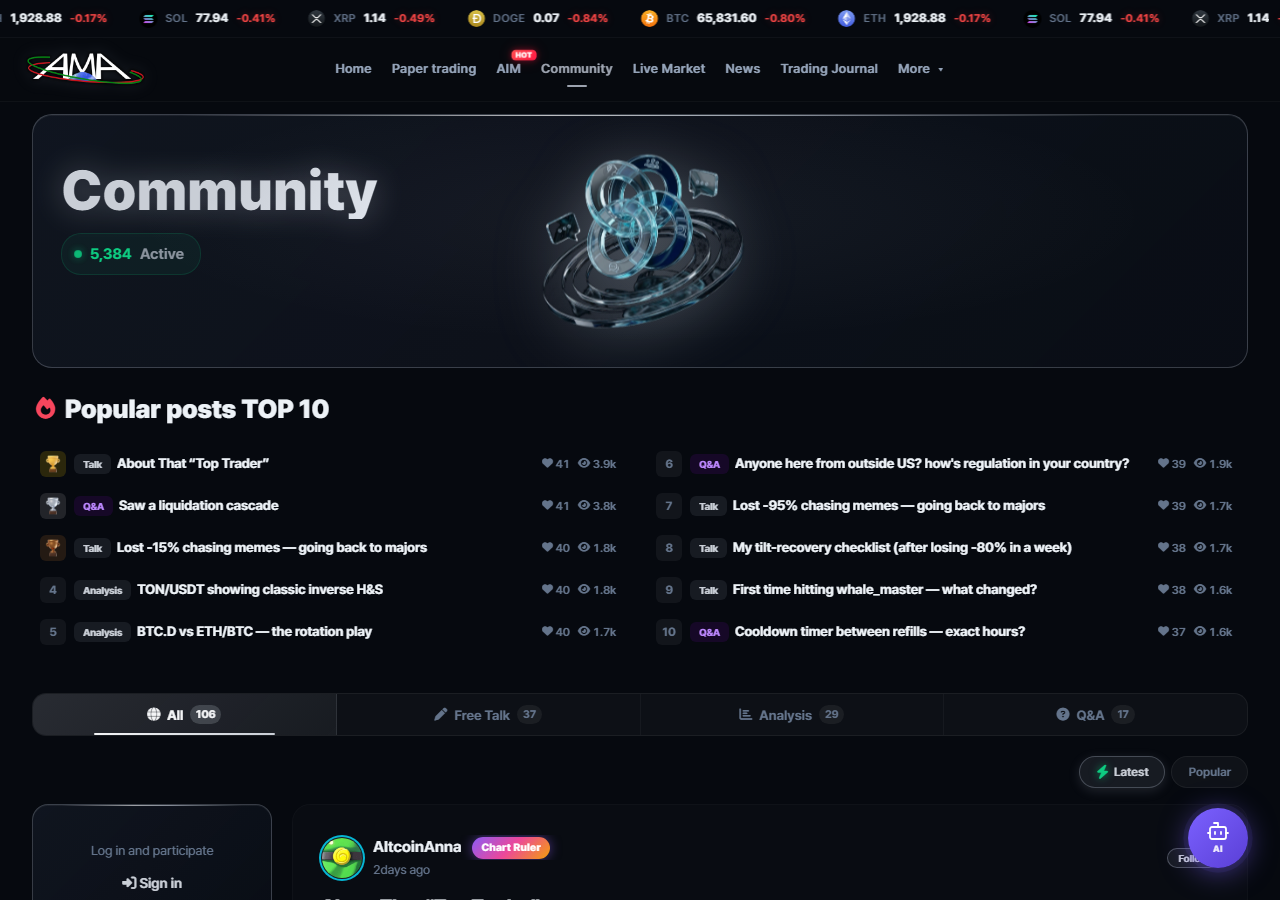
A Popular posts TOP 10 block sits at the top of the list. Notices and news posts are excluded, and only posts with a title of at least three characters are counted.
There is no "News & info" tab. Coin news lives in its own top-menu item, [News].
How do I write a post?
1
Press Write in the community. You need to be logged in.
2
Pick a category — Free / Analysis / News / Q&A
3
Enter a title of up to 100 characters.
4
Write the body. You may attach images.
URLs are not allowed in the title or the body. This is an anti-spam restriction and it applies to comments as well.
About the "News" category — it is used when you enter through [Write an opinion] on a news article. Posts created that way are linked to the news page and do not appear in the community list.
How do likes and comments work?
On a post's detail page you can use the following.
Mission link-up — community likes count towards the daily mission (1 like, 5P) and the general mission (30 likes, 300P).
- Like / dislike
- Comments and replies — you can reply inline to a comment.
- Share
- Report
Mission link-up — community likes count towards the daily mission (1 like, 5P) and the general mission (30 likes, 300P).
Follows, profiles and titles
Following — you can follow someone from a post detail page or from their profile. A profile shows follower count, following count, post count and likes received.
A title (badge) is shown only when you equip an item won from the gacha in MY > Customise. There is no system that grants badges automatically by tier or by ranking position.
Customise gacha
- 300P for a single pull, 2,500P for ten
- Three item types — profile border, title badge, avatar
- Pulling an item you already own refunds 30P.
Rewards & points
A tour of the reward centre
The reward centre has five tabs.
- Home — the attendance calendar and your point balance
- Missions — the daily and general missions currently running
- Exchange — products you can redeem with points
- Invite friends — your invite code and referral status
- History — a record of points earned and spent
How do I earn points?
| Source | Reward | Frequency |
|---|---|---|
| Sign-up (accepting the terms) | 1,000P | Once per account |
| Signing up with an invite code | +1,000P | Once per account |
| A friend signs up with your code | 500P | Per person |
| Daily check-in | 50P | Once a day |
| 30-day check-in streak | +500P | Once every 30-day cycle |
| Watching a video | 10P | 5 times a day (up to 50P) |
| Completing the paper-trading tutorial | 150P | Once |
| Completing the AIM tutorial | 150P | Once |
| Daily mission — 1 community post | 10P | Once a day |
| Daily mission — 3 paper trades | 30P | Once a day |
| Daily mission — 1 like | 5P | Once a day |
| Daily mission — 1 journal entry | 15P | Once a day |
| General mission — 5 posts | 500P | Once per account |
| General mission — first invite | 500P | Once per account |
| General mission — first trade | 300P | Once per account |
| General mission — 30 trades | 500P | Once per account |
| General mission — 30 likes | 300P | Once per account |
| Duplicate from the customise gacha | 30P refund | Per duplicate |
Missions pay out automatically the moment you meet the condition.
The mission list can be adjusted by the operators. Check the Rewards > Missions tab for the missions running right now.
What can I spend points on?
| Use | Cost |
|---|---|
| AIM chart analysis (beyond 5 per day) | 100P each |
| Paper-trading AI position analysis (beyond 10 per day) | 50P each |
| Per-trade journal AI feedback (beyond 30 per month) | 50P each |
| Re-running the daily journal summary | 100P each |
| Re-running the monthly journal summary | 500P each |
| Customise gacha, single pull | 300P |
| Customise gacha, ten pulls | 2,500P |
| Exchange products | See the Exchange section |
AI learning levels cannot be bought with points. The level purchase route is kept separate from point redemption.
How does inviting friends work?
1
Open the Rewards > Invite friends tab to see and copy your invite code.
2
You can change the code yourself to 4–12 alphanumeric characters.
3
Send the invite link to a friend. When they sign up through it the code is applied automatically.
| Recipient | Reward |
|---|---|
| You (the inviter) | 500P |
| Your friend (the new member) | 1,000P sign-up bonus + 1,000P invite bonus = 2,000P in total |
The reward screen currently displays a note saying "500P for both you and your friend", which does not match what is actually paid. The figures in the table above are the amounts you really receive. The on-screen wording is scheduled to be corrected separately.
Exchange
What can I redeem? (all eight products)
| Category | Product | Price | Notes |
|---|---|---|---|
| Coin | USDT $100 withdrawal | 200,000P | Enter a wallet address and network (TRC20 / ERC20 / BEP20); an administrator sends it manually |
| Creator | Creator upload pass | 30,000P | A pass used within the creator feature |
| Creator | HOT listing pass | 3,000P | A pass used within the creator feature |
| AI pass | Extra AIM chart analysis | 100P | One extra run once you pass 5 per day |
| AI pass | Extra paper-trading AI position analysis | 50P | One extra run once you pass 10 per day |
| AI pass | Extra per-trade journal feedback | 50P | One extra run once you pass 30 per month |
| AI pass | Extra daily journal summary | 100P | A re-run once you pass 1 per day |
| AI pass | Extra monthly journal summary | 500P | A re-run once you pass 1 per month |
- Prices are set by the server. Changing the value in the browser has no effect.
- AIM chart analysis, journal, position analysis and HOT passes are consumed automatically before your points the moment you exceed a feature's free allowance.
- The creator upload pass is not auto-consumed yet. If you have bought one and need it applied, please contact us.
- The exchange line-up is identical in all four languages. The only units are points (P) and USDT.
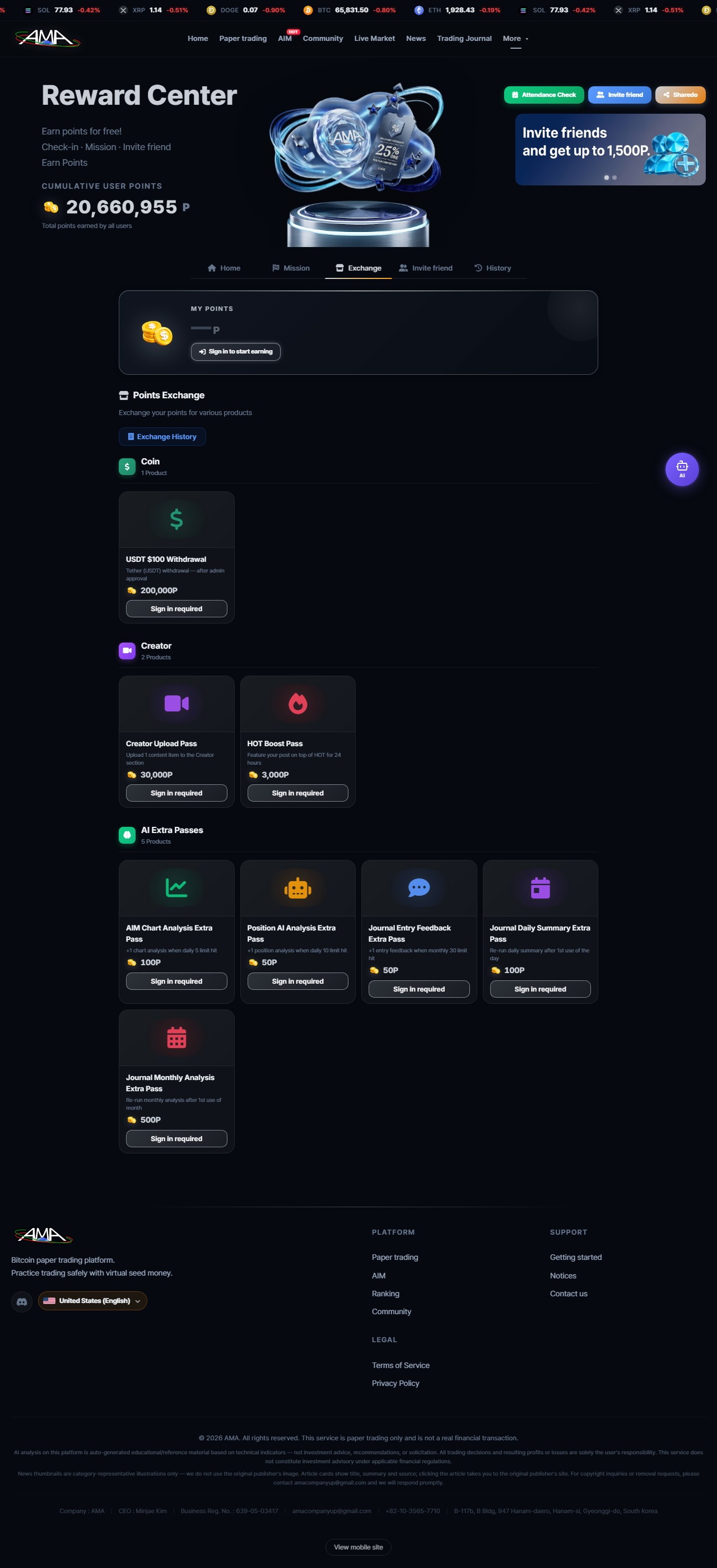
Requesting and processing an exchange
1
Select a product in the exchange.
2
Fill in the required details. For a USDT withdrawal that means your wallet address and network.
3
Once submitted, the request is registered as pending.
4
When processing finishes it becomes completed or rejected.
USDT withdrawals are sent manually by an administrator, so processing can take some time. Enter the wallet address and network exactly. A mistake cannot be reversed.
Ranking & market info
How is the ranking calculated?
Five country tabs — Global / Korea / USA / Japan / Greater China (grouped by the language your account uses)
Three sort orders — by ROI, by profit, by number of trades
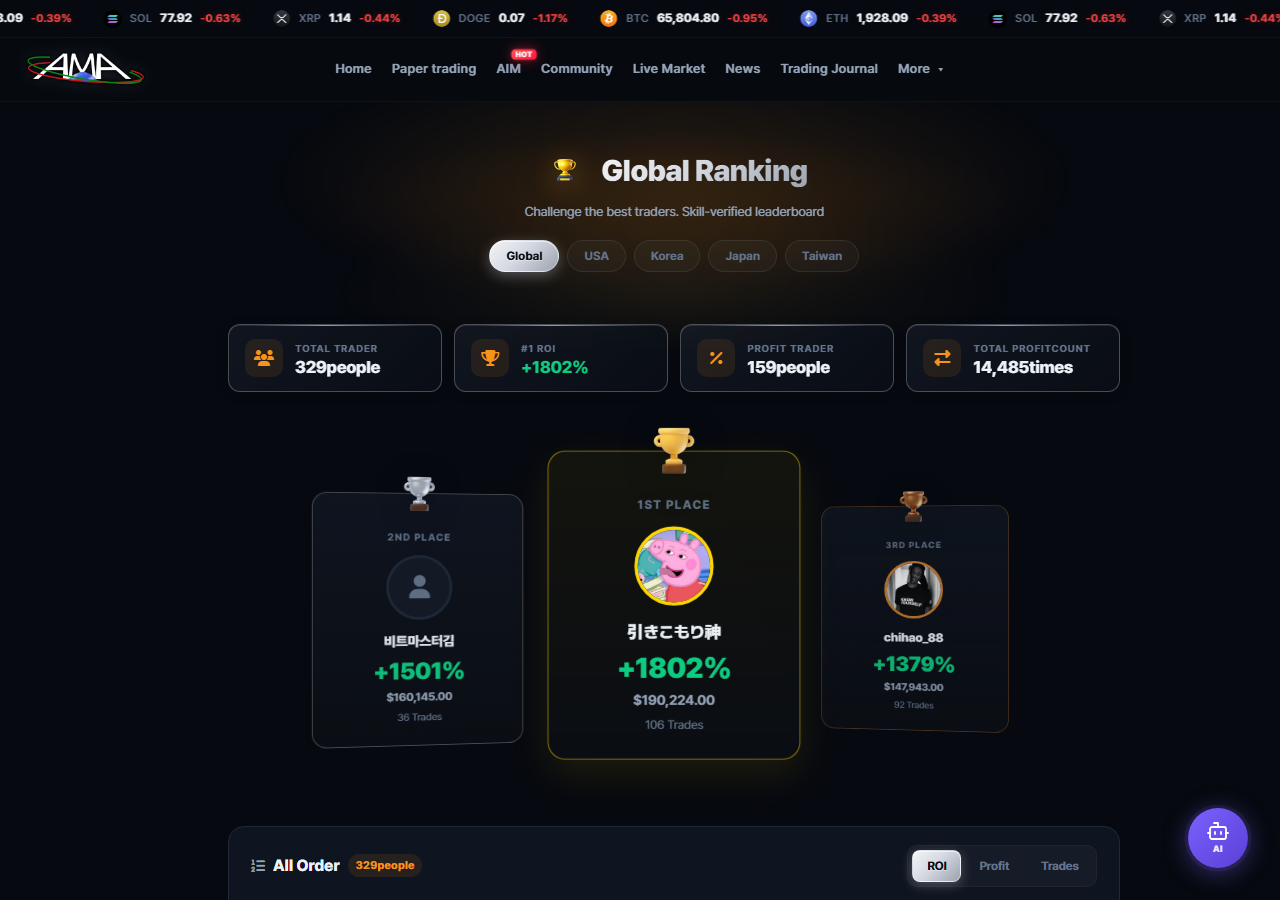
Three sort orders — by ROI, by profit, by number of trades
There is no period filter (daily, weekly, monthly). The three sorts above are the only options.
- ROI is calculated from your total equity (cash + used margin + unrealised P&L) against your baseline seed (10,000 USDT, or the value at the time of your most recent refill). Open positions affect your rank immediately.
- The top 3 are shown on a podium with trophies.
- Administrator accounts are excluded from the ranking.
There is no system that displays gold, silver, bronze or diamond badges across the community based on rank. The titles you see in the community come from items equipped in Customise.
Live market, news and the glossary
Live market
- Real-time prices across every symbol
- Four tabs — long/short ratio, liquidations, funding rate, open interest (OI)
- Fear and greed index
- Bull vs bear battle
- Aggregated coin news
- AI summary — the summary, expected effect (long, short or neutral) and the coins likely to benefit
- Likes and comments
- Pressing [Write an opinion] on an article links through to a community post.
Get started now
Practise risk-free with 10,000 USDT of virtual seed money, then sharpen your skills with AI analysis and the trading journal.